
How to recover from a damaged/failed Big Sur update or missing NVMe drive issue. If you can’t see your NVMe after a Big Sur or similar update then read on.
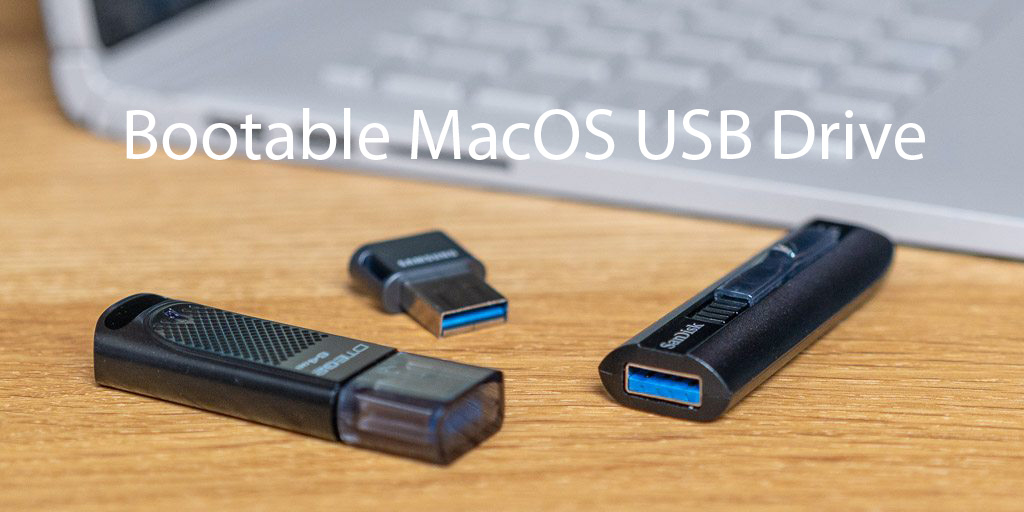
Use a Windows PC to create the MacOS (dmg) recovery USB the easy way! Other Mac recovery methods can be more difficult especially if you don’t have a spare Mac available or having issues with downloading a MacOS to clone.
This process will WIPE/ERASE all data on the MacBook. If you need the data from the MacBook you will need to get the data recovered first before starting.
1: On a Windows PC – Download this copy of macOS High Sierra Version 10.13.6 (https://drive.google.com/file/d/1GCpj4vQq3rZyV2oQpohkv0EFspVg32CZ/view?usp=sharing) and fully extract the zip to a new folder.
2: Find a decent speed 16Gb USB 3.0 stick/drive and insert it into the Windows PC. (These are big files so slow USB is going to take ages)
3: Download TransMac for your Windows PC (https://www.acutesystems.com/index.htm)
4: Open TransMac and Right Click the USB drive and select ‘Format Disk for Mac’.
5: When it is done – Windows might suggest formatting it again – Do NOT do this – Close those formatting options.
6: Once again Right Click the USB drive in TransMac and click ‘Restore with Disk Image’.
7: Select the file called MacOS_High_Sierra.dmg and click open.
8: It will take some time to copy to the USB drive – once done, you need to select ‘Eject’.
9: Now on your MacBook – Hold down the ‘Option/Alt’ key and press the power ON button but keep pressing the ‘Option’ key until you see the boot options appear.
10: At this point either select the install disk or ‘Disk Util’ to Erase the main disk and then start your OS install on the fully erased main disk.
If you don’t have a Windows PC available and want to try a Mac App OS bootable USB then see this web page: https://9to5mac.com/2018/10/22/how-to-create-macos-mojave-usb-installer-easy-video/
Any issues with the MacOS High Sierra download then please send us an email.
Still stuck? For a small fee we could create a bootable MacOS High Sierra USB drive for you.
We would also like to recommend https://www.flexxmemory.co.uk/ as a great supplier of quality replacement MacBook SSD/NVMe drives.
Additional references:
https://support.apple.com/en-us/HT211242
https://support.apple.com/downloads
https://support.apple.com/en-gb/HT201372
https://support.flexxmemory.co.uk/portal/en/kb/articles/fix-to-apply-when-mac-os-10-13-was-not-installed-prior-new-nvme-ssd-installation
https://support.flexxmemory.co.uk/portal/en/kb/articles/install-macos-using-internet-recovery-option
https://support.flexxmemory.co.uk/portal/en/kb/articles/fledging
https://support.flexxmemory.co.uk/portal/en/kb/articles/how-to-bless-your-drive
https://www.macworld.co.uk/feature/os-x-macos-versions-3662757/